Tableau Dashboard
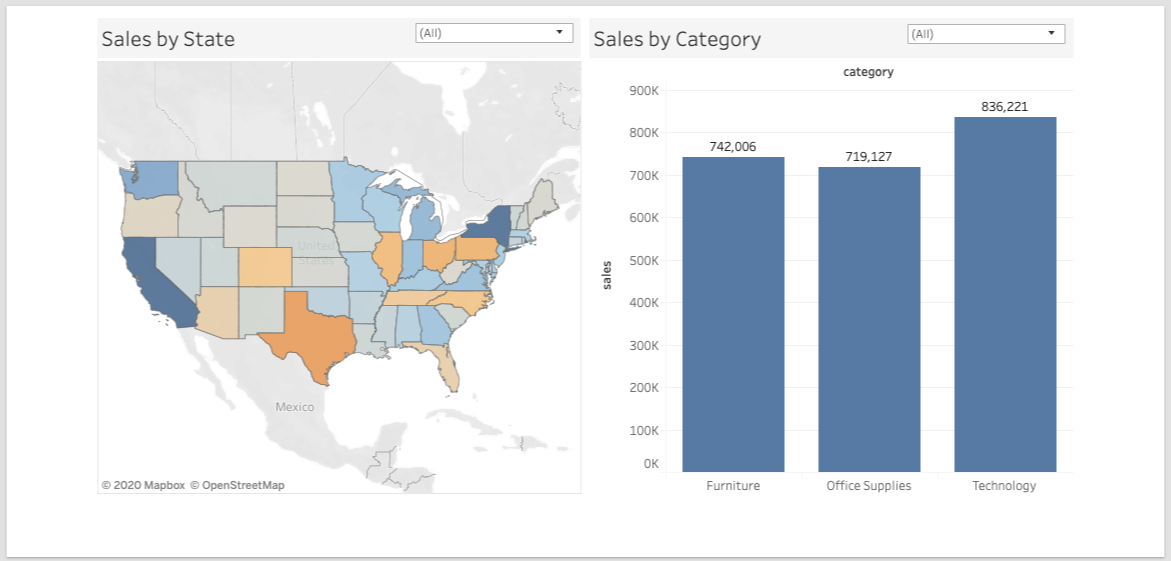
Easily embed Tableau dashboards into the Portal with the Tableau Dashboard block.
Add Tableau Block
This block type can be added to a grid on a page via the edit menu, sidebar editor, or admin console.
Tableau Tab
The first tab of the Edit Tableau Dashboard Block modal is for configuring the embedded Tableau view in the Portal
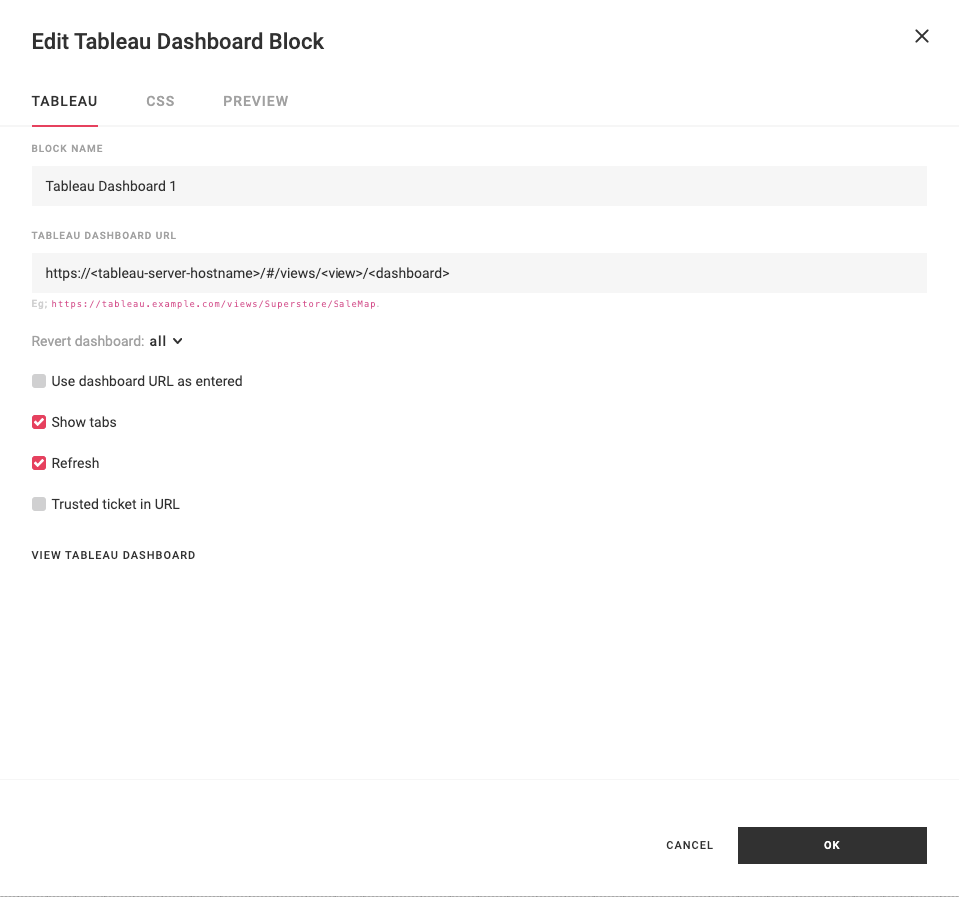
- Block Name - Name of the block.
- Tableau Dashboard URL - Copy and paste the share link from a Tableau dashboard on a Tableau Server/Online that the Portal is configured to use.
- Revert dashboard - When should the Tableau dashboards filters be reset based on actions in the Portal? Options are: none, all, filters, sorts, axes, shelves. Default is all.
- Use dashboard URL as entered - Check this box if you do not want to use the Portal to proxy Tableau requests. One specific use case of this is to embed Tableau Public dashboards. Default is unchecked.
- Show tabs - Check this box if you want to show the tabs on a Tableau dashboard. This is the equivalent of adding
:tabs=yon an embedded Tableau view. - Refresh - Refresh the Tableau dashboard on page load. This is the equivalent of adding
:refresh=yon an embedded Tableau view. - Hide toolbar - Check this box to hide the Tableau toolbar on the embedded dashboard.
- Trusted ticket in URL - Enabled trusted tickets for this Tableau block. This is the equivalent of adding
/z/trusted/on an embedded Tableau view. - View Tableau Dashboard - Click this link to open the Tableau dashboard in the Tableau Server/Online UI directly.
Note
Tableau V2 blocks were removed in Portal 1.17.0. Existing V2 blocks are automatically upgraded to use the Tableau V3 embed method.
CSS Tab
This block type can be styled with CSS. Learn more about block CSS.
Preview Tab
This block type can be previewed. Learn more about block preview.
Filtering Tableau Dashboards
Filtering is two way with Tableau blocks:
- Blocks that filter (e.g. multi-select, select,data table, etc.), filter Tableau blocks.
- Tableau blocks with internal Tableau filters can filter other blocks.
Each direction is controlled independently by two checkboxes in the block editor, both checked by default:
- Allow this block to filter other Portal content — pushes filters set inside the Tableau view out to the rest of the page.
- Allow other Portal content to filter this block — applies Portal filters to the embedded Tableau view.
Learn more about block filtering and data source filters.