Html
Description
Add any HTML and JavaScript content into the Portal with an HTML block.

The content that can be made with this block type is incredibly diverse.
Common HTML block examples:
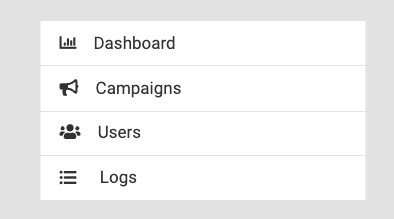
- Custom navigation menus
- Multimedia (images, video, audio, PDFs, etc)

- Embedding other websites / applications via embed codes
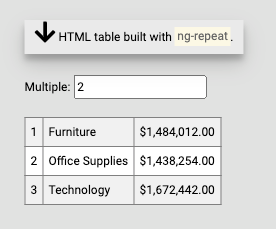
- Data driven templates (using HTML block query + AngularJS)
- Interactivity with other blocks using the Portal's System JavaScript API
Add HTML Block
This block type can be added to a grid on a page via the edit menu, sidebar editor, or admin console.
HTML Tab
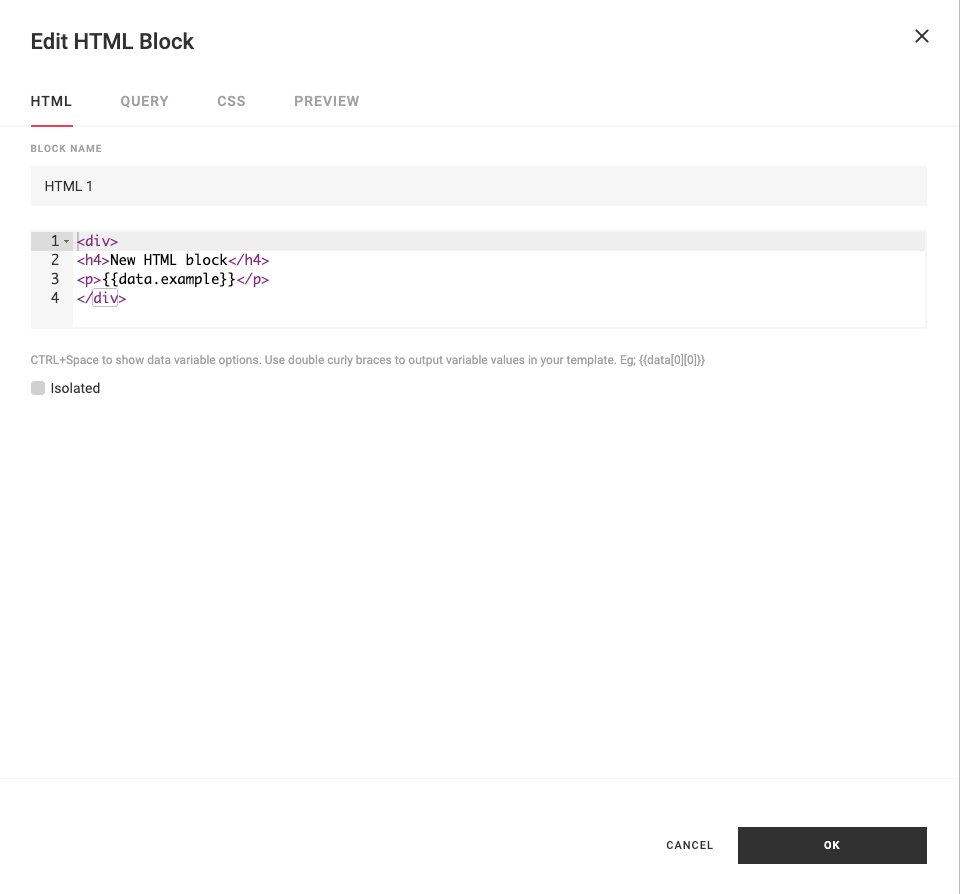
- Block Name - Name of the block.
- HTML Code - Type any HTML and JavaScript code.
- Isolated - Check this box if you need to bring in external JavaScript libraries. The block needs to be isolated into an iframe so that there are no conflicts with the Portals JavaScript libraries.
External libraries
An HTML block can load external JavaScript libraries by URL, so you don't have to hand-write <script src> tags in the HTML body. In the block editor, open the External libraries section and click Add library for each one. Each row has:
- URL - the library's address, for example
https://cdn.example.com/library.js. - Sync / Async - how the library loads (see below). New rows default to Async.
- A drag handle - drag rows to reorder them; the number shows the load order.
- A remove button to delete the row.
Sync vs. Async
- Sync libraries load one after another, in the listed order, and are guaranteed ready before the block's own inline
<script>code runs. Use Sync for a library your block script calls directly (for example a charting library whose global you use, likeechartsoram5) and for libraries that must load in a specific order. - Async libraries load in parallel and are not waited for - the same behavior as a native
<script async>tag - so they may not be ready when the block's script runs. Use Async for libraries that register themselves or aren't needed for the first render.
Loaded once per page. Identical URLs are de-duplicated: if several blocks list the same URL, or the same URL is also requested from JavaScript, the file is fetched a single time and shared across the page. A library that fails to load is logged to the browser console and skipped, so it doesn't block the other libraries or the block's own script.
Works alongside inline <script> tags. You can still write <script> tags in the HTML body. Use the External libraries list for shared or order-sensitive dependencies (loaded before your block code); use inline <script> tags for the block's own logic.
To load libraries from JavaScript instead - including stylesheets, web fonts, and AMD/UMD workarounds - see JavaScript Patterns and zPortal.resources.load().
Query Tab
This block type can use the results from a data source query. Learn more about block query.
CSS Tab
This block type can be styled with CSS. Learn more about block CSS.
Preview Tab
This block type can be previewed. Learn more about block preview.
JavaScript API
The Portal provides access to a variety of information on the block's query, general Portal settings, as well as helper methods.
currentBlock.currentUser
Information about the currently logged in user.
Example
<div>
    <script>
        console.log(currentBlock.currentUser)
    </script>
</div>
Data structure
{
    "id": "11111111-2222-3333-4444-555566667777",
    "username": "user",
    "fullname": "User",
    "email": null,
    "is_admin": true,
    "groups": [],
    "source": "LOCAL"
}
currentBlock.pages
Information about the current page.
Example
<div>
    <script>
        console.log(currentBlock.pages)
    </script>
</div>
Data structure
[
    {
        "user_id": null,
        "name": "Default",
        "order": 1000,
        "icon": null,
        "screenshot": "",
        "tags": [],
        "access": {...},
        "id": "11111111-2222-3333-4444-555566667777",
        "updated_at": "2024-09-06T17:01:51.527261+00:00",
        "created_at": "2024-09-01T02:14:09.468113+00:00",
        "data": {...}
    }
]
currentBlock.layout
Information about the current page.
Example
<div>
    <script>
        console.log(currentBlock.layout)
    </script>
</div>
Data structure
{
    "user_id": null,
    "name": "Default",
    "order": 1000,
    "icon": null,
    "screenshot": "",
    "tags": [],
    "access": {...},
    "id": "11111111-2222-3333-4444-555566667777",
    "updated_at": "2024-09-06T17:01:51.527261+00:00",
    "created_at": "2024-09-01T02:14:09.468113+00:00",
    "data": {...}
}
currentBlock.theme
Information about the currently applied theme.
Example
<div>
    <script>
        console.log(currentBlock.theme)
    </script>
</div>
Data structure
{
    "user_id": null,
    "name": "Theme",
    "json_data": {...},
    "access": {...},
    "id": "11111111-2222-3333-4444-555566667777",
    "updated_at": "2024-09-05T21:01:10.391995+00:00",
    "created_at": "2024-09-05T21:01:10.392004+00:00"
}
currentBlock.system
Information about the saved system variables.
Example
<div>
    <script>
        console.log(currentBlock.system)
    </script>
</div>
Data structure
{
    "default_dashboard":"b1d69910-9f85-490a-bc1f-aaf980a61437",
    "theme_id":"62384ecf-3813-4ff7-b503-73bbd612a51b"
}
currentBlock.siteConfig (DEPRECATED)
Note: This property is deprecated. Use currentBlock.config instead.
Site configuration properties.
Example
<div>
    <script>
        console.log(currentBlock.siteConfig)
    </script>
</div>
Data structure
{
    "system": {...},
    "theme": {...},
    "openapi_url": "/openapi.json",
    "openapi_prefix": "/api",
    "debug": true,
    "database_url": "URL('postgresql://user:********@db/portal')",
    "target_database_url": "URL('postgresql://user:********@db/portal')",
    "partials": {...},
    "payload": {...},
    "thoughtspot": {...},
    "permissions": [...],
    "admin": true,
    "version": "2020.2.11",
    "tableau_server": null,
    "token_expiry": 14400
}
currentBlock.config
Site configuration properties.
Example
<div>
    <script>
        console.log(currentBlock.config)
    </script>
</div>
Data structure
{
    "portal": {
        "common": {...},
        "app": {...}
    },
    "auth": {
        "common": {...},
        "app": {...}
    }
}
currentBlock.getOnLoadedCallback
Returns a callback function that implementors can call to notify the Portal that the block is finished loading. The Portal needs to be notified when the block is done loading in order to hide the loading indicator or generate a page export at the appropriate time.
When asynchronous code is run in an HTML block, implement the onLoadedCallback to ensure proper Portal load behavior.
Example
<div>
    <script>
        let callback = currentBlock.getOnLoadedCallback();
        let data = someAPI.getData()
            .then(() => {
                callback();
            })
    </script>
</div>
currentBlock.getOnAnimatedCallback
Returns a callback function that implementors can call to notify the Portal that the HTML block is finished playing animations. The Portal needs to be notified when the block is done playing animations in order to generate a page export at the appropriate time.
When HTML code is using animations, implement the getOnAnimatedCallback to ensure proper Portal export results.
let callback = currentBlock.getOnAnimatedCallback();
callback();
Example
<div>
    <script>
        let callback = currentBlock.getOnAnimatedCallback();
        setTimeout(function() {
            // Wait for animations to finish
            callback();
        }, 2000);
    </script>
</div>
currentBlock.$element
A jQuery object referencing the root DOM element of the block. Use this to find and manipulate elements within your HTML block's content.
Example
Build a table from query results by accessing a <tbody> inside the block's HTML:
<table>
    <thead>
        <tr>
            <th>Name</th>
            <th>Value</th>
        </tr>
    </thead>
    <tbody id="results"></tbody>
</table>
<script>
    var $tbody = currentBlock.$element.find('#results');
    var data = currentBlock.queryResults[0].data;
    data.forEach(function(row) {
        $tbody.append(
            '<tr><td>' + row[0] + '</td>'
            + '<td>' + row[1] + '</td></tr>'
        );
    });
</script>
currentBlock.queryResults
The currentBlock.queryResults property contains the results from all queries configured on the Query tab of the block editor. It is an array of result objects, one per query, each with data, columns, and mappedData properties.
currentBlock.queryResults
// [
//   { data: [...], columns: ["col1", "col2"], mappedData: [...] },
//   { data: [...], columns: ["colA", "colB"], mappedData: [...] }
// ]
Each result's data is the raw row data — an array of rows, where each row is itself an array of values in column order. Column values can also be accessed by name as a property on the data array (this returns the column's values across all rows).
currentBlock.queryResults[0].data
// [[11, 12], [21, 22]]

currentBlock.queryResults[0].data[0]
// [11, 12]

currentBlock.queryResults[0].data.one
// [11, 21]

currentBlock.queryResults[0].columns
// ["one", "two"]
For an ergonomic column-name view of each row, use mappedData (described below).
currentBlock.queryResults[i].mappedData
The mappedData property on each query result is an array of {columnName: value} objects — the same rows as data, but with each row mapped to its column definitions. This is the most convenient form when your script reads values by column name on a per-row basis.
currentBlock.queryResults[0].mappedData
// [{"one": 11, "two": 12}, {"one": 21, "two": 22}]

currentBlock.queryResults[0].mappedData[0]
// {"one": 11, "two": 12}

currentBlock.queryResults[0].mappedData[0].one
// 11
A typical use:
currentBlock.queryResults[0].mappedData.forEach(function(row) {
    console.log(row.Region, row.Sales);
});
currentBlock.data (deprecated)
Deprecated
Use currentBlock.queryResults[0].data instead. currentBlock.data is a shortcut to the first query's data and does not support multiple queries.
currentBlock.data     // equivalent to currentBlock.queryResults[0].data
currentBlock.data[0]  // [11, 12]
currentBlock.data.one // [11, 21]
currentBlock.columns (deprecated)
Deprecated
Use currentBlock.queryResults[0].columns instead. currentBlock.columns is a shortcut to the first query's columns and does not support multiple queries.
currentBlock.columns  // equivalent to currentBlock.queryResults[0].columns
// ["one", "two"]