This documentation describes an old release, version 3.6.6. Documentation for the latest release, 3.7.2, can be found here.
Store
Zuar Runner has the ability to store source system data as JSON on the file system of the Zuar Runner server.

The data is stored in a RocksDB key-value store.
Benefits of a Zuar Runner Store
Seeing the “raw” data from the source system converted to JSON (even if the source system’s data was not in JSON originally)
Querying the source system ONCE per endpoint and allowing Zuar Runner to query the JSON store for nested lists, rather than having to re-query the source system.
Configuring a Zuar Runner Job to Use a Store
Zuar Runner input/output (IO) jobs can be optionally configured to store raw source data as JSON.
A normal Zuar Runner IO job’s JSON config has at least 3 key/value pairs: input,
output, and steps. You might also see an optional sdl key/value pair.
A Zuar Runner IO job that uses a store has an additional store key/value pair.
Example Zuar Runner JSON Job with Store
Example source JSON file:
[
    {
        "id": "1",
        "type": "donut",
        "name": "Cake",
        "ppu": 0.55,
        "batters":
            {
                "batter":
                    [
                        { "id": "1001", "type": "Regular" },
                        { "id": "1002", "type": "Chocolate" },
                        { "id": "1003", "type": "Blueberry" },
                        { "id": "1004", "type": "Devil's Food" }
                    ]
            },
        "topping":
            [
                { "id": "5001", "type": "None" },
                { "id": "5002", "type": "Glazed" },
                { "id": "5005", "type": "Sugar" },
                { "id": "5007", "type": "Powdered Sugar" },
                { "id": "5006", "type": "Chocolate with Sprinkles" },
                { "id": "5003", "type": "Chocolate" },
                { "id": "5004", "type": "Maple" }
            ]
    },
    {
        "id": "2",
        "type": "donut",
        "name": "Raised",
        "ppu": 0.55,
        "batters":
            {
                "batter":
                    [
                        { "id": "1001", "type": "Regular" }
                    ]
            },
        "topping":
            [
                { "id": "5001", "type": "None" },
                { "id": "5002", "type": "Glazed" },
                { "id": "5005", "type": "Sugar" },
                { "id": "5003", "type": "Chocolate" },
                { "id": "5004", "type": "Maple" }
            ]
    },
    {
        "id": "3",
        "type": "donut",
        "name": "Old Fashioned",
        "ppu": 0.55,
        "batters":
            {
                "batter":
                    [
                        { "id": "1001", "type": "Regular" },
                        { "id": "1002", "type": "Chocolate" }
                    ]
            },
        "topping":
            [
                { "id": "5001", "type": "None" },
                { "id": "5002", "type": "Glazed" },
                { "id": "5003", "type": "Chocolate" },
                { "id": "5004", "type": "Maple" }
            ]
    }
]
A Zuar Runner job is created using this JSON file with a generic IO JSON job.
Job Title: [JSON] Donuts
Job Name: plugin_generic_job___json_donuts (The store name will be the same as the job name.)
Here’s the job config of the newly created job:
{
  input: {
    use: flatfile.iov2#JsonInput
    source: /opt/mitto_data/data/example_donuts.json
  }
  output: {
    tablename: donuts
    use: call:mitto.iov2.db#todb
    schema: demo
    dbo: postgresql://db/analytics
  }
  steps: [
    {
      use: mitto.iov2.steps#Input
      transforms: [
        {
          use: mitto.iov2.transform#ExtraColumnsTransform
        }
        {
          use: mitto.iov2.transform#ColumnsTransform
        }
      ]
    }
    {
      use: mitto.iov2.steps#CreateTable
    }
    {
      use: mitto.iov2.steps#Output
      transforms: [
        {
          use: mitto.iov2.transform#FlattenTransform
        }
      ]
    }
    {
      use: mitto.iov2.steps#CollectMeta
    }
  ]
}
When this job runs, the toplevel data from the JSON file is flattened into a database
table. In this case, a table named donuts is created in Zuar Runner’s internal
PostgreSQL database in the demo schema.
This job can be configured to use a store by adding the store section as shown below:
{
    "input": {
        ...
    },
    "output": {
        ...
    },
    "sdl": {
        ...
    }
    "steps": [
        ...
    ],
    "store": {
        "key": [
            "$.id"
        ]
    }
}
Note the addition of the store key/value pair. The store requires that the
source data have a primary key. In this case the primary key is id. The dollar
sign in front of id indicates JSON Path Syntax.
To understand how to use JSONPath to pick specific sections of data out of a JSON object you can visit: https://goessner.net/articles/JsonPath/
To interactively learn how to use JSONPath syntax, you can visit: https://jsonpath.com/
Querying a Zuar Runner Job Store
Using a Zuar Runner job’s store allows you to search the raw JSON data from inside the Runner UI. Instead of having to use a Database Tool such as Data Grip or DBeaver, you can see the data without leaving Runner. Perhaps more importantly, while the PostgreSQL table only contains the toplevel data, the store contains the nested data too. There are two ways to search this data: the STORE Explorer within the UI or using a URL either with cURL or in your browser.
Querying From the STORE Explorer
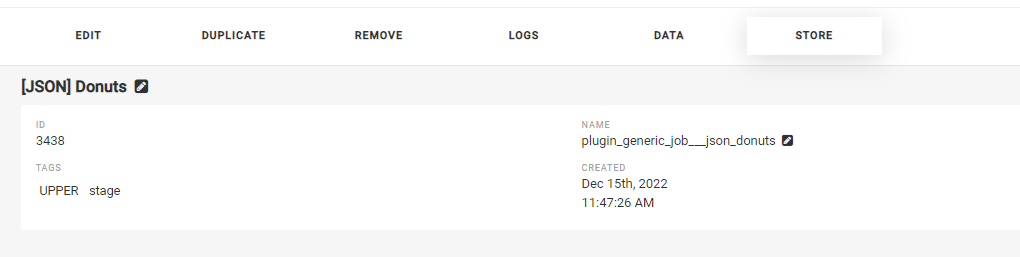
In Zuar Runner, you can view the results of the JSON store by running the job and then clicking STORE
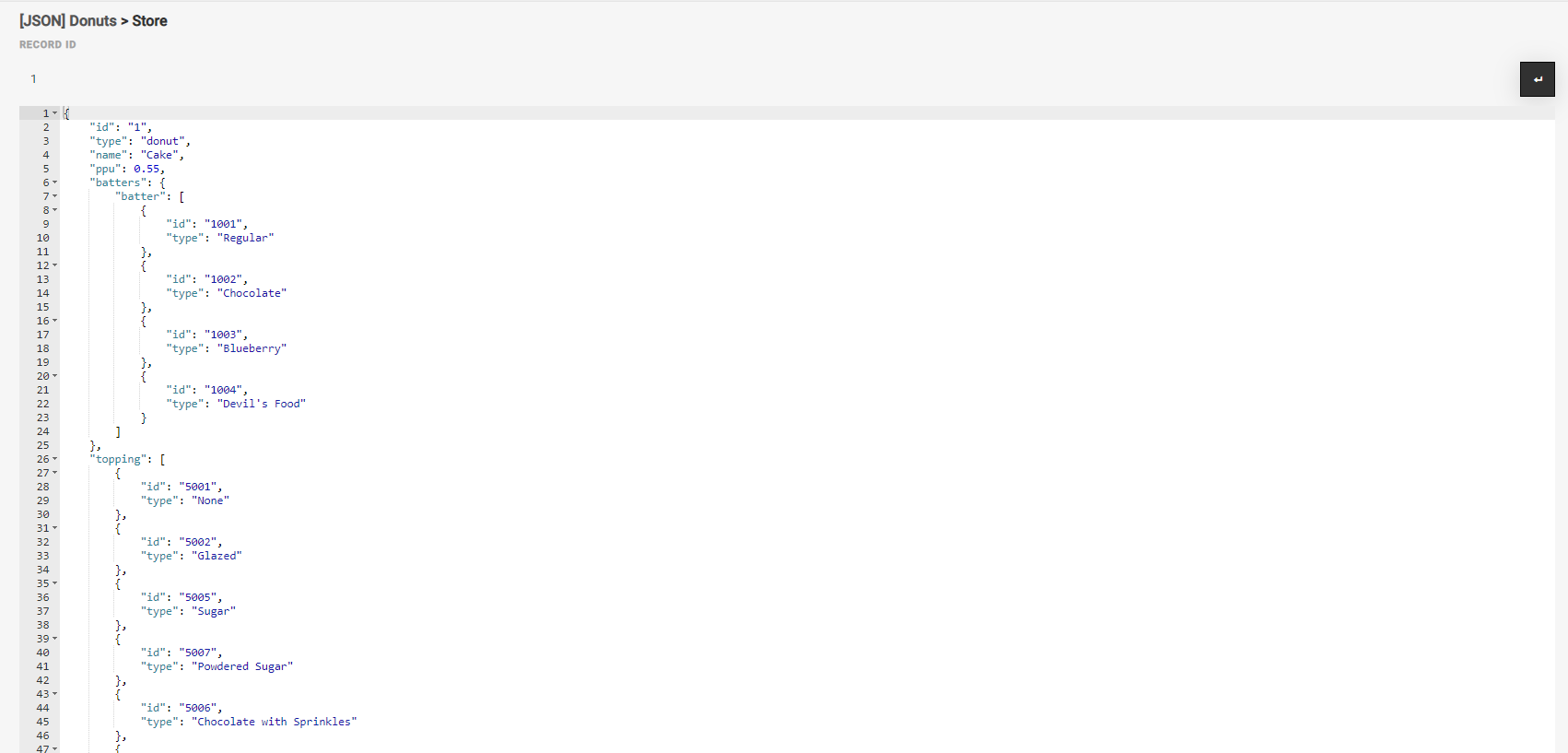
Under RECORD ID you can input the primary key of one of the records from
the store to display the rest of the fields in that record. The key must have
been configured when the store was added to the job. In our example, the primary
key is id. To see the record, simply input the id value from the record you
wish to display, and click the search button to the right to retrieve details about
that record as it exists in the store.
Querying using a URL
Querying using a URL is particularly useful if you are pulling this data via a script or using cURL. In this case. the data is returned in the form of a json object. To do this, use the name of the job and the key value in the resulting database as fill-ins and navigate in the browser to (or cURL) this URL:
https://{runner_url}/api/v2/store/{job_name}/{key_value}
Using our example job above:
https://stage-mitto3.zuarbase.net/api/v2/store/plugin_generic_job___json_donuts/1
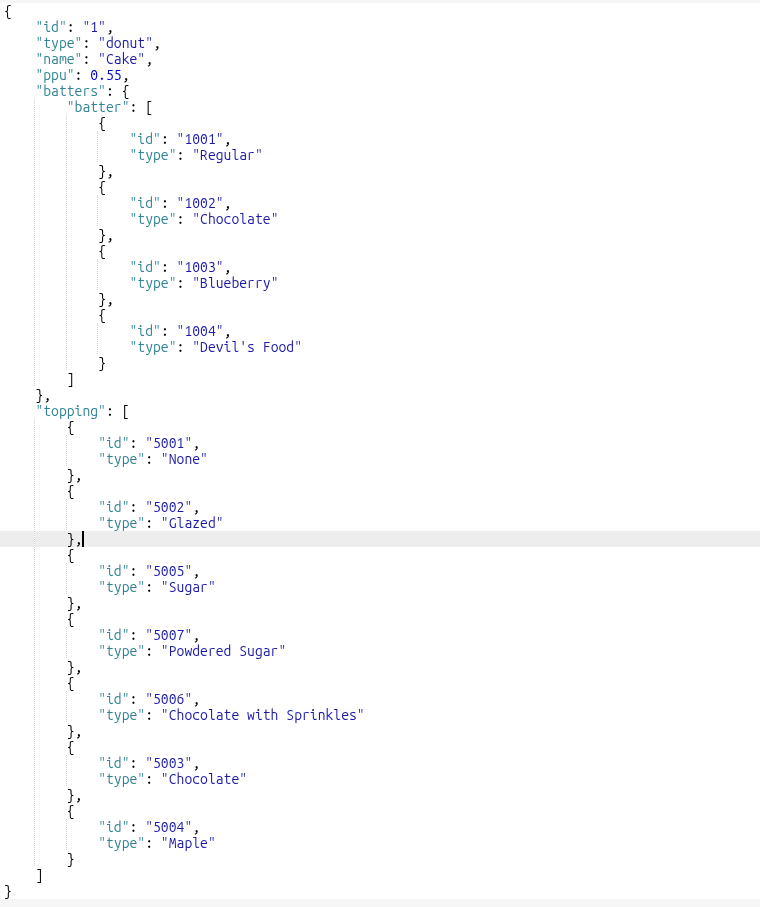
The result is the json object of the record in the plugin_generic_jobs__json_donuts job’s
store with the primary key 1.
Zuar Runner Job Stores with multiple keys
Zuar Runner job stores can be configured to use multiple keys.
For example, we can configure our donut job to use both “id” and “name”:
"store": {
    "key": [
        id,
        "name"
    ]
}
In order to see the matching Zuar Runner job store record in the Zuar Runner UI,
you concatenate the key values with double underscore __.
That section inside the UI looks like this:

The url format when using two keys looks like this:
https://{runner_url}/api/v2/store/{job_name}/{key_value_1}__{key_value_2}
For our example, the final URL looks like this:
https://stage-mitto3.zuarbase.net/api/v2/store/plugin_generic_job___json_donuts/1__Cake
Using the Zuar Runner Job Store as a Source
Since the Zuar Runner job store preserves the complete raw record—including nested arrays—Zuar Runner job stores can also be configured as a data source in their own right. This means downstream jobs can pull nested data straight from the store instead of re-querying the original source system, saving re-reads from the source.
Read more about piping data from a Zuar Runner store here.
Deleting a Zuar Runner Store
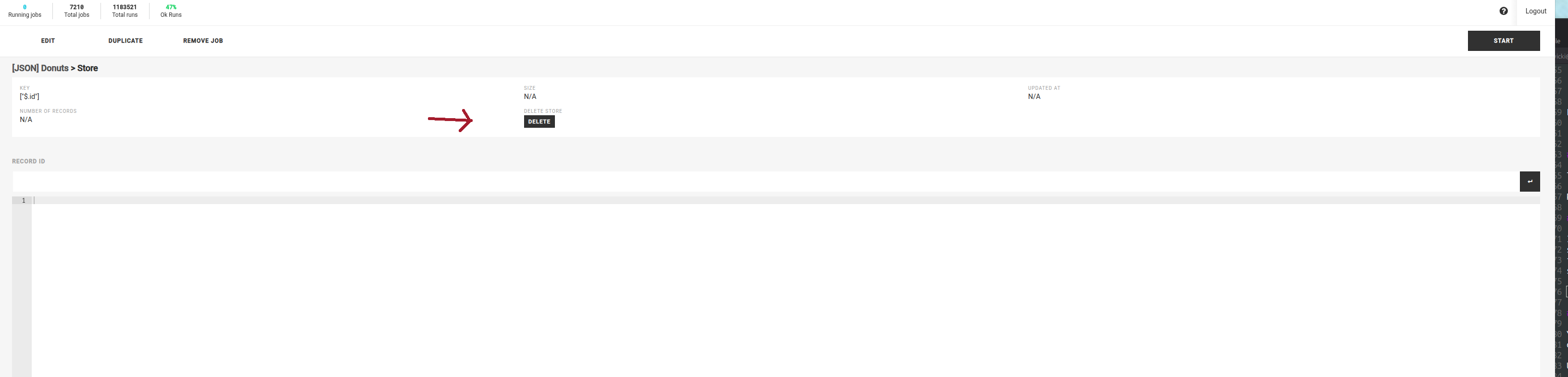
It is sometimes necessary to delete a Zuar Runner job’s store when you want to start with a clean pull of the data. A Zuar Runner job’s store can be deleted from the Runner UI by simply clicking the DELETE button in the middle of the store page:
Zuar Runner Store Job with No Output
You can create a job that outputs ONLY to a Zuar Runner store and does not output data to a database (the default output).
Using the same example CSV file from above, here’s the modified job config:
{
  input: {
    use: flatfile.iov2#JsonInput
    source: /opt/mitto_data/data/example_donuts.json
  }
  steps: [
    {
      use: mitto.iov2.steps#Input
    }
  ]
  store: {
            key: [
                $.id
            ]
        }
}
Notice this job’s JSON config has no output or sdl objects. It also has only one step which relates to the input. The step itself has it’s standard transforms removed as well.
Why No Output?
This job configuration is useful for use cases where an API is the input and the output needs to be more than one database. With this job setup, the API is only queried once and the resulting data ends up ONLY in the Zuar Runner store. As a follow up, you can create Zuar Runner Store input jobs to pipe data from the Zuar Runner store to other outputs.